
LS25 GE10 Script – Placeable XML Editor (Prefab) V1.0.0.1

LS25 GE10 Script – Placeable XML Editor (Prefab) V1.0.0.1
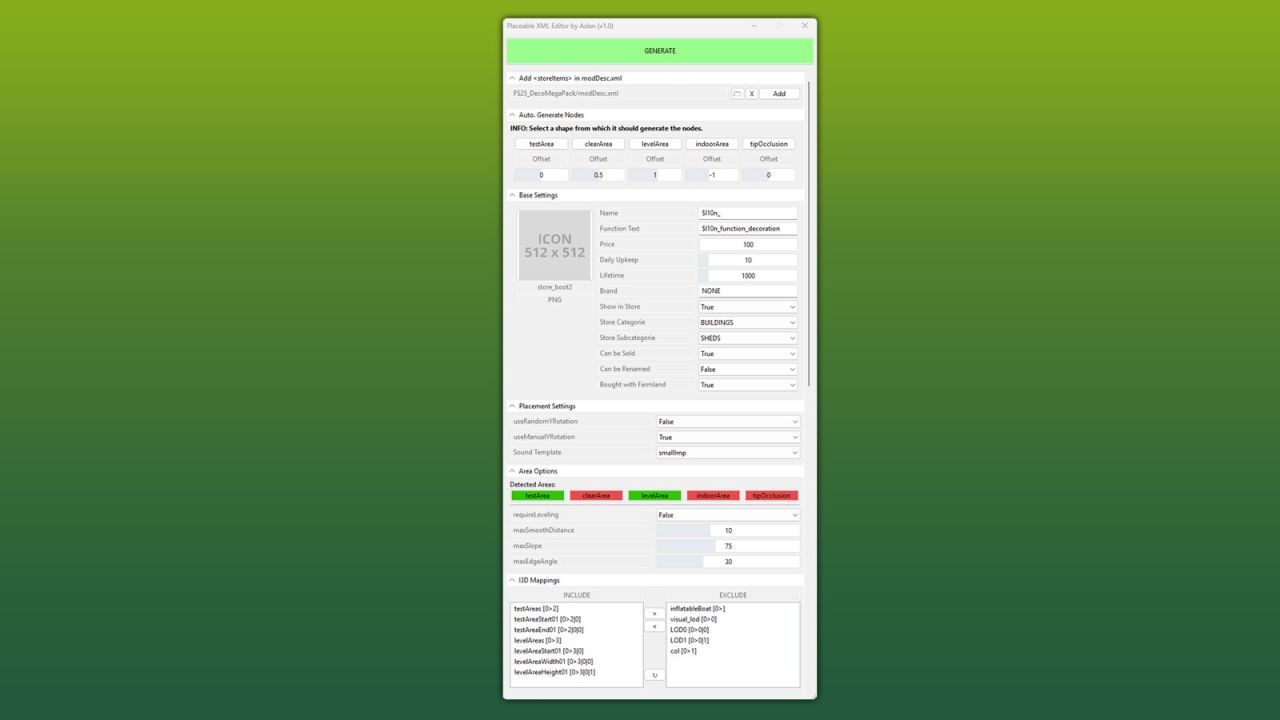
This GIANTS Editor script allows you to easily create and edit a placeable XML file.
The script automatically detects the corresponding placeable.xml, provided it is located in the same directory and has the same name as the .i3d file. If existing entries are found, all supported parameters are read and made available for editing within the tool.
Installation:
1.) Locate the installation directory of the GIANTS Editor. By default: “C:/Program Files/GIANTS Software/GIANTS_Editor_10.X.X/”
2.) Copy the script “PlaceableXMLEditor.lua” and “iconBigDefault.png” from the prefab folder into the script directory of the GIANTS Editor.
3.) The script will then be available in the GIANTS Editor via the menu bar under “Scripts”.
Usage:
1.) Start the script on an object that you want to create as a placeable.
2.) The script automatically detects whether the object is located inside a mod and, if so, enables the tab “Add in modDesc.xml”. There, the path to the modDesc.xml can be specified in order to automatically add the placeable XML to the modDesc.
3.) Areas can be generated automatically. Set the offset value (in meters), select the object from which the areas should be generated, and click the corresponding button to create the area.
4.) Adjust all parameters according to your requirements.
5.) In the “I3D Mappings” section, select the nodes that should be stored in the I3D mappings of the XML. If necessary, the scene graph can be reloaded using the “Refresh” button.
6.) Finally, click “GENERATE” or “UPDATE” at the top to create or update the placeable.xml.
INFO:
At the moment, it is not yet possible to create all placeable specializations such as sellingStation, buyingStation, husbandries, etc. directly within the tool. However, the script can be used as a base to generate an XML file, which can then be manually extended with additional specializations.
The PlaceableIcon is currently only displayed if it is a .PNG file. .DDS files are not (yet) supported by the Giants Editor in scripts!
The script only modifies parameters that are configurable within the tool. Any existing XML entries that are not supported by the script will remain unchanged and will not be removed or overwritten.
V1.0.0.1
– added iconBigDefault.png
– Path “PlaceableXMLEditor.PLACEABLE_ICON_EMPTY_PATH” adjusted
– Custom area names will be possible in the next regular update. Currently, only these exact names are accepted:
# testAreaStart01, testAreaEnd01
# clearAreaStart01, clearAreaWidth01, clearAreaHeight01
# levelAreaStart01, levelAreaWidth01, levelAreaHeight01
# indoorAreaStart01, indoorAreaWidth01, indoorAreaHeight01
# tipOcclusionUpdateAreaStart01, tipOcclusionUpdateAreaEnd01


